Swipe for Meals
Swipe recipes. Plan the week.
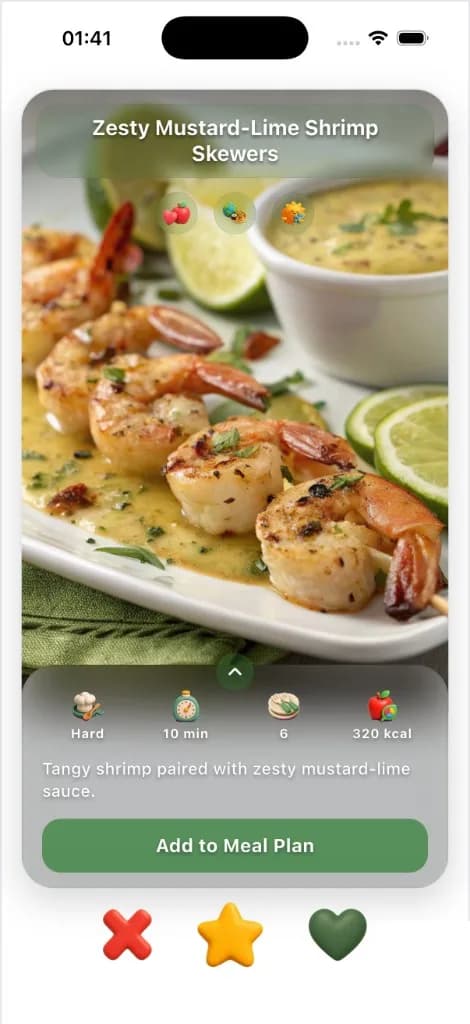
Right if you’ll cook it. Left if you won’t. When someone you cook with likes the same recipe, that’s a match — it can land on the week, the grocery list, and Cook Mode on iPhone.
Personalised deck
Ranked from your saved diet, cuisine, time and budget — not random tags.
Quick Recipe modes
Cook from pantry, list, 15 minutes, or one ingredient. One tap each.
Daily swipe quotas
5 / day on Free, 30 on Premium, 70 on Pro. Super-likes never expire.




How swipe meal planning works
Four steps from preferences to a meal everyone can actually cook.
- 01
Start from your real preferences
Your deck is ranked around saved nutrition targets, calorie and macro targets, weight-loss or muscle goals, sport context, allergies, dislikes, diet rules, cuisines, meal types, cooking time, skill, difficulty, techniques, and budget context before cards are served.
- 02
Swipe your own deck
Each person swipes recipes from their own preference-aware deck. Right = like, left = pass, super-like = priority, so dinner feedback stays tied to the person who made the choice.
- 03
Match, plan, or save
When connected partners, family, or friends like or super-like the same recipe, ChefSphere can show a recipe match. Those signals can feed solo and shared meal planning, Quick Recipe, grocery context, and saved collections.
- 04
Cook in guided mode
On iPhone, tap a saved card to open Cook Mode — step-by-step instructions, timers, ingredient checklist, Chef AI on call for substitutions.
Three reasons swipe beats search
Ranked before you swipe
The deck is not a random feed. Recipes are filtered and scored against your saved food, cooking, nutrition, budget, and restriction settings before you see them.
Connected recipe matches
Couples, families, and friends can discover overlap naturally: a match appears when connected users like or super-like the same recipe.
Connected to the rest of ChefSphere
The same preference and swipe signals support AI meal planning, Quick Recipe, Cook Mode, grocery context, saved recipes, and future recommendations.
Taste learning that follows what you actually cook
A recipe is more than a label like “Italian, vegetarian, 30 min.” ChefSphere uses the preferences you actually set: cuisines, food types, meal types, cooking techniques, time limits, skill level, difficulty, disliked ingredients, allergens, diet rules, nutrition goals, calorie targets, macro targets, sport context, and budget context.
Those settings guide what enters the deck and how recipes are ranked. Likes, skips, super-likes, saves, recipe matches, cooked meals, and accepted preference updates then refine what ChefSphere should show, plan, and suggest next.
That is the preference paradox solved in plain language: what you say in settings matters, each person’s own swipe history matters, and shared plans can use connected signals without pretending everyone has the same taste.
Daily swipe access — Free, Premium, Pro
Each plan includes daily swipe access, Cook Mode on iPhone, and the same taste-learning loop. Paid tiers expand planning volume, household collaboration, and advanced creation tools.
- Free gets you started with recipe swiping, Cook Mode on iPhone, Quick Recipe, and basic weekly planning.
- Premium expands daily swipe capacity, longer planning, vision-assisted creation, and Couple Zone.
- Pro expands household planning for Family and Friends zones, deeper recipe creation, and health-aware planning.
- Optional add-ons can extend swipe access on heavy planning days without changing your base plan.
From swipe to plate — Cook Mode on iPhone
Every saved swipe can open Cook Mode on iPhone: step-by-step instructions, large-format timers, ingredient checklists, and Chef AI on call for substitutions or scaling. No locked-down tutorial — just the recipe at the size and pace your kitchen needs.
Reviews and ratings live next to the steps so you can iterate with notes for next time.
Eight moments where Swipe for Meals earns its place
Pick the closest moment — every workflow runs on the free plan.
Tuesday weeknight
20-minute dinner from what is in the fridge
Open Quick Recipe → Pantry. Swipe through options that fit what you have and how you usually eat, then open Cook Mode on iPhone.
Sunday batch cook
Three Sunday recipes that scale to four lunches
Swipe with the “meal-prep friendly” filter on, super-like the winners, push to plan with portion-scaling for the week.
I have chicken and 20 minutes
Quick Recipe by ingredient + time cap
Type “chicken thigh” and set 20 min. The deck filters to your taste profile, you swipe, you cook.
Allergy-safe dinner
Avoid meals that conflict with allergies or dislikes
Set allergies and disliked ingredients once. Swipe for Meals filters unsafe or unwanted ingredients out of recommendations instead of asking you to inspect every card manually.
Nutrition-focused week
Meals ranked around calories, macros, and training context
When nutrition goals are set, recipes can be ranked around calorie targets, macro targets, protein needs, weight-loss or muscle goals, and sport context while still respecting taste and cooking constraints.
Budget-aware planning
Recipes that fit your cost comfort zone
Set a budget category or max cost per serving so the recommendation deck and plan can prefer meals that fit what you want to spend.
Couple recipe overlap
Find the recipe both partners actually liked
Each partner swipes their own deck. When both like or super-like the same recipe, the match card makes the overlap visible for planning.
Family or friends dinner
Group planning from individual signals
Family and friends can keep their own tastes while shared planning uses member signals and matches to surface meals the group is more likely to accept.
Swipe for Meals vs typical recipe apps
A side-by-side at the moments most cooks judge a recipe app.
| Capability | ChefSphere — Swipe for Meals | Typical recipe apps |
|---|---|---|
| Discovery | Preference-ranked swipe deck based on saved nutrition targets, calories, macros, allergies, dislikes, diet, cooking, budget, sport context, and taste settings. | Static lists, broad tags, or feeds that do not know your constraints. |
| Personalization signal | Settings, likes, skips, super-likes, saves, recipe matches, cooked meals, and accepted preference updates can all shape future planning. | Saved recipes stay as a folder, separate from planning. |
| Plan integration | Each user swipes their own deck; solo and shared plans can use connected signals to find better-fit meals. | Re-enter preferences per app; no connected household signal. |
| Quick Recipe | Pantry, grocery list, under-15-min, and by-ingredient flows reuse your preferences. | Search-only or one rigid “quick” filter. |
| Cook Mode | On iPhone: guided steps, timers, checklists, and Chef AI substitutions. | Often separate from discovery or limited to basic instructions. |
| Recipe matches | Match cards show when connected partners, family, or friends like or super-like the same recipe. | No shared signal, or manual screenshots and group chats. |
Frequently asked questions about Swipe for Meals
Is this the same as the in-app Swipe for Meals?
This page is the public product overview. After you sign in, the interactive swipe deck lives in the app at /swipe-for-meals/play.
Is the recipe deck random?
No. Swipe for Meals generates recommendations from saved preferences such as nutrition goals, calorie targets, macro targets, weight-loss or muscle goals, sport context, allergies, disliked ingredients, diet, cuisine, meal type, cooking time, skill, difficulty, techniques, and budget context, then uses swipes, cooking history, and accepted preference updates to refine future cards.
How many swipes do I get per day?
Free includes daily recipe swiping. Premium and Pro expand swipe capacity, planning volume, collaboration, and creation tools. Optional add-ons can extend swipe access on heavy planning days.
How is this different from a saved-recipe folder?
A saved folder remembers what you bookmarked. ChefSphere uses swipes, saves, settings, and cooking history to improve planning, grocery context, and ChefSphere AI together.
What about food allergies, halal, kosher, gluten-free?
Set them in onboarding and they apply to the recommendation deck. Allergens and disliked ingredients are excluded, diet rules are respected, and cooking time, skill, nutrition, and budget settings can influence ranking by plan.
How do recipe matches work for couples, family, and friends?
Each person swipes their own preference-aware deck. When connected users like or super-like the same recipe, ChefSphere can show a recipe match so shared planning starts from real overlap instead of guessing.
Can shared meal plans respect everyone’s preferences?
Yes. Couple, family, and friends planning can use individual preferences, saved recipes, swipe history, matches, and cooking signals to surface meals the group is more likely to accept.
Is this medical or weight-loss advice?
No. Swipe for Meals supports everyday recipe discovery around goals you set, such as calorie targets, macro targets, weight-loss support, training nutrition, allergies, diets, and grocery budgets. It does not diagnose, treat, guarantee outcomes, or replace advice from a qualified professional. See /legal/terms, /legal/privacy, and /legal/ai-disclosure.
Explore the rest of ChefSphere
Swipe recipes. Plan the week.
In-app swipe lives at /swipe-for-meals/play after sign-in. This page is the public, indexed product overview for search.